Display Modes
Display modes allow you to control how your application displays the user interface decorations such as the status bar and navigation bar.
Modes
There are several main display modes defined in the DisplayMode class:
DisplayMode.NORMAL: Shows both the status bar and navigation bar;DisplayMode.FULLSCREEN: Shows the navigation bar and hides the status bar;DisplayMode.IMMERSIVE: Hides both the status bar and navigation bar, the user can reveal them with a swipe.
In order to set the display mode, you use the Display class and call the setDisplayMode function:
Display.instance.setDisplayMode( DisplayMode.FULLSCREEN );
We recommend you set the fullscreen flag in your application descriptor to false in order to disable the AIR fullscreen mode and allow the native code to work correctly. Without this AIR will affect the display mode and keyboard information.
<initialWindow>
    ...
    <fullScreen>false</fullScreen>
    ...
If you set this to true then we cannot guarantee the display modes will work correctly.
On iOS the differences between the display modes is less impactful. The modes basically control the visibility of the status bar. Fullscreen and immersive are basically the same with the status bar hidden, while the normal mode shows the status bar.
Layout Modes
With Android 15 apps are edge-to-edge by default on devices running Android 15 if the app is targeting Android 15 (API level 35). This means that layout modes are ignored and SHORT_EDGES, NEVER, and DEFAULT are interpreted as ALWAYS so that users don't see a black bar caused by the display cutout and appear edge-to-edge.
Modern devices are moving towards smaller bezels and larger aspect ratios. On these devices, display cutouts or "notches" are a popular way to achieve an edge-to-edge experience while providing space for important sensors on the front of the device.
We have two main options when displaying our content around cutouts, and how it will appear will depend on the display mode you are using.
LayoutMode.CUTOUT_SHORT_EDGES: The window is allowed to extend into the cutout areas;LayoutMode.CUTOUT_NEVER: The window is never allowed to overlap with the cutout area;LayoutMode.CUTOUT_ALWAYS: Content is always allowed to extend into the cutout areas. If your app targets SDK 35 and is running on an Android 15 device, this is the only allowed mode ;
To set the layout mode, pass the required mode as the second parameter to the setDisplayMode() function:
Display.instance.setDisplayMode( DisplayMode.FULLSCREEN, LayoutMode.CUTOUT_SHORT_EDGES );
These modes mainly have an effect in fullscreen or immersive modes where the view has the potential of displaying around the cutout.
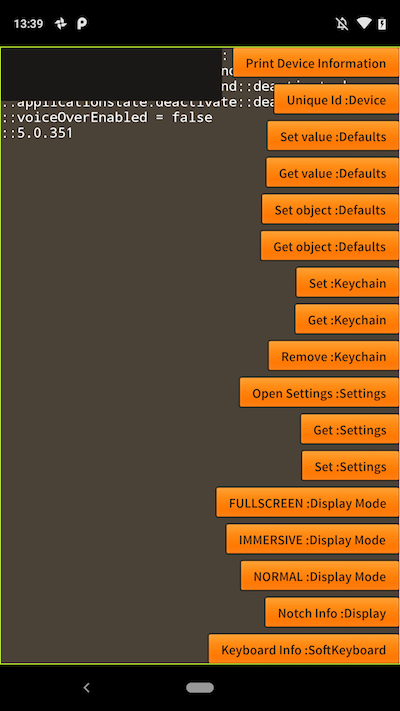
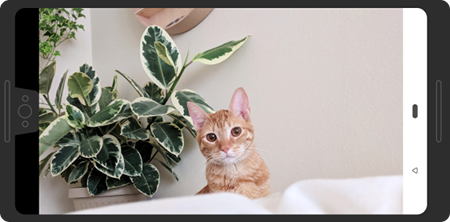
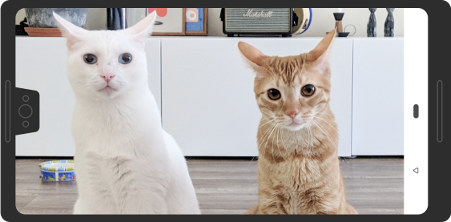
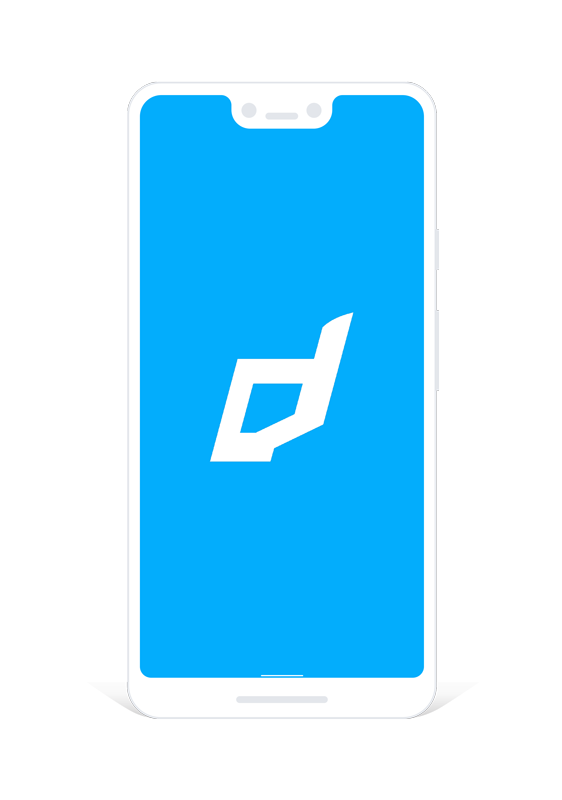
Eg The following screenshots so the differences when using the various modes:
Display.instance.setDisplayMode(
    DisplayMode.NORMAL
);
Display.instance.setDisplayMode(
    DisplayMode.FULLSCREEN,
    LayoutMode.CUTOUT_NEVER
);
Display.instance.setDisplayMode(
    DisplayMode.FULLSCREEN,
    LayoutMode.CUTOUT_SHORT_EDGES
);
In order to render your content around the cutout see the documentation on getting information about the Window Insets.
Examples:
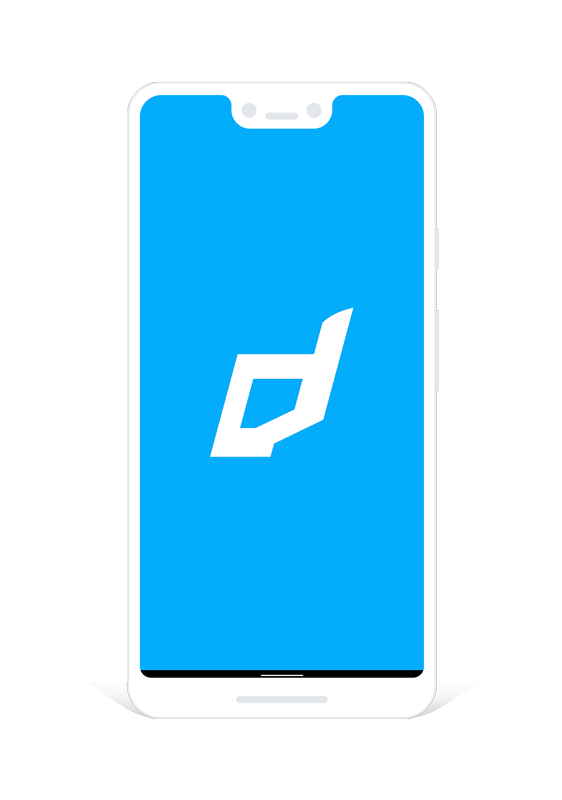
Display.instance.setDisplayMode(
    DisplayMode.FULLSCREEN,
    LayoutMode.CUTOUT_SHORT_EDGES
);
Display.instance.setDisplayMode(
    DisplayMode.IMMERSIVE,
    LayoutMode.CUTOUT_SHORT_EDGES
);
Aspect Ratios
As devices change in size we have seen a change in aspect ratios. You may encounter black letterboxing on some Android devices with your AIR application. For example, the following image is from a Google Pixel 3 XL with fullscreen flag:
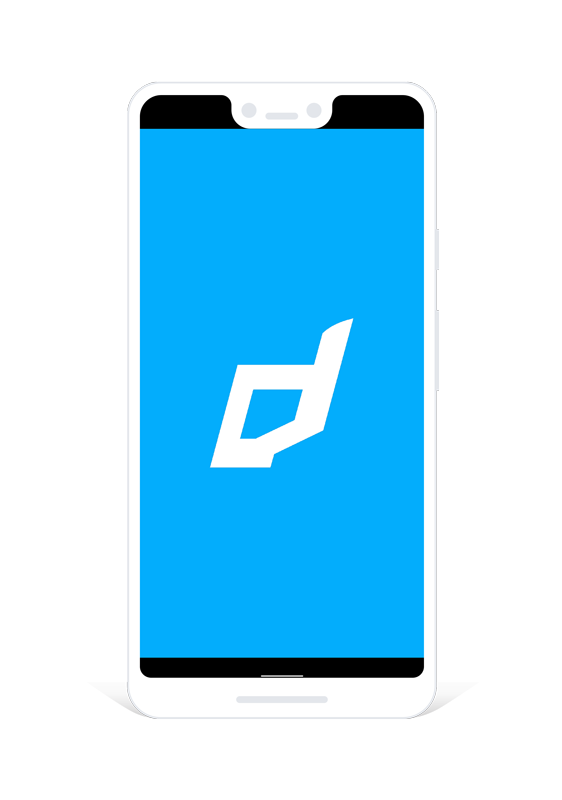
In order to resolve this, simply add the following tag inside the application in your manifest additions of your application descriptor:
<meta-data android:name="android.max_aspect" android:value="2.5" />
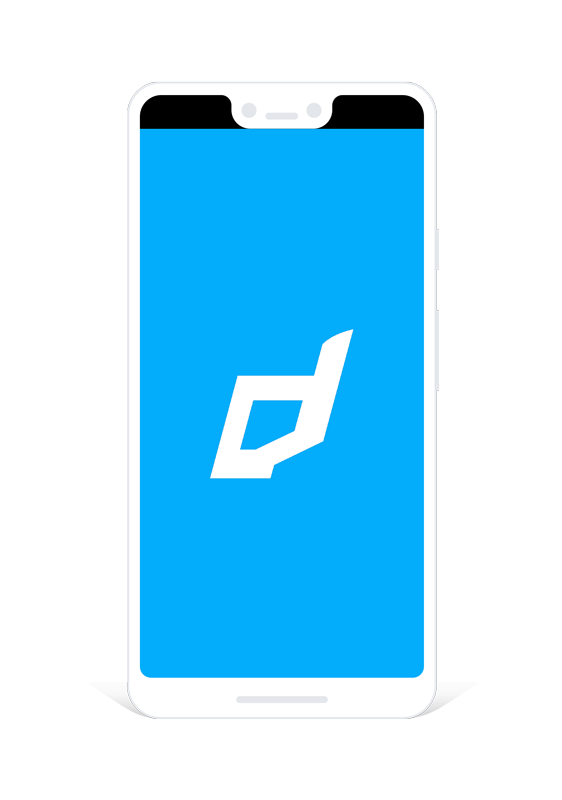
This image still has a black area at the top due to the cutout.
To resolve this you will need to use the the methods above eg:
Display.instance.setDisplayMode(
    DisplayMode.IMMERSIVE,
    LayoutMode.CUTOUT_SHORT_EDGES
);
Ensure you place this within the application tag eg:
<android>
    <manifestAdditions><![CDATA[
        <manifest android:installLocation="auto">

            <uses-sdk android:minSdkVersion="21" android:targetSdkVersion="35"/>

            <uses-permission android:name="android.permission.INTERNET"/>
            <uses-permission android:name="android.permission.WAKE_LOCK" />

            <application>
                <meta-data android:name="android.max_aspect" android:value="2.5" />
            </application>

        </manifest>
    ]]></manifestAdditions>
</android>
If you encounter this on iOS then most likely you are missing the launch storyboard or a "Default.png" matching the resolution of the device.